Objective: Configure MESH
Actor(s): LRCM Administrator
Activities:
- Access the System configuration module
- Add a user
- Configure a user
- Configure general parameters
| Activity 1. Access the System configuration Module |
User Action: 1. Hit the System Configuration icon 
Activity succeeds: MESH displays the System Configuration module. 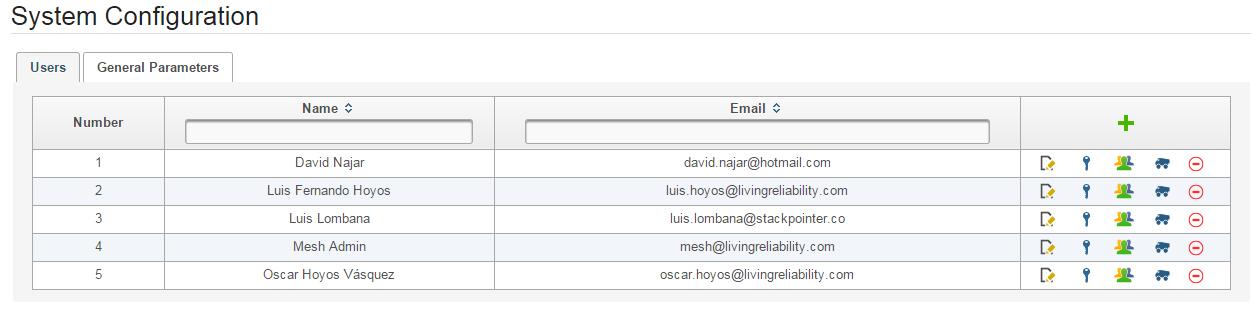
| Activity 2. Add a user. |
User Action: 1. Hit the + icon.
System response: MESH displays the Create user dialog. 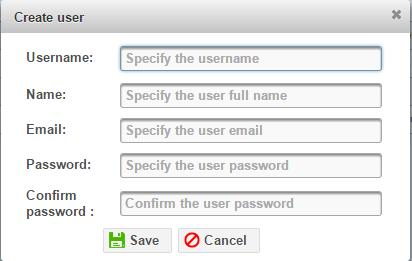
User Action: 2. Enter the required data. Hit Save. 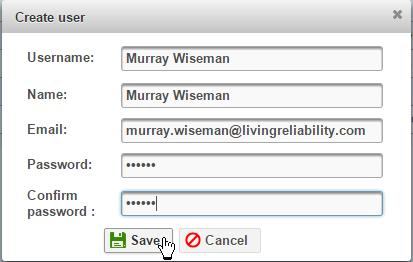
Activity succeeds: MESH closes dialog and displays list with new user added. 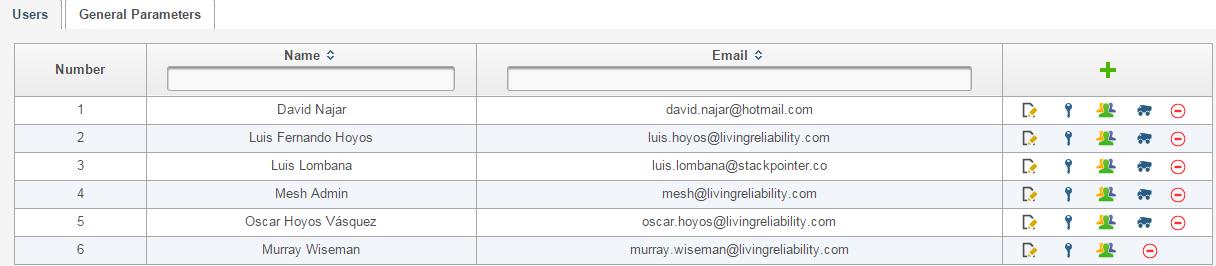
| Activity 3. Configure a user. |
User action: 1. Hit the Role Configuration icon. 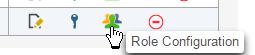
System response: MESH displays the Role Configuration dialog. 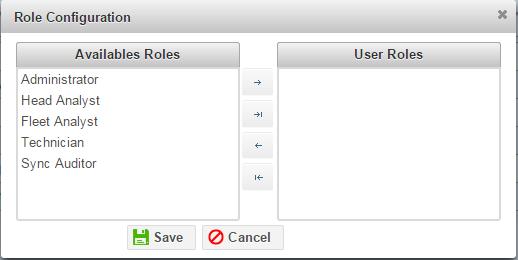
User action: 2. Transpose the desired role(s) to the right by hitting the top arrow. 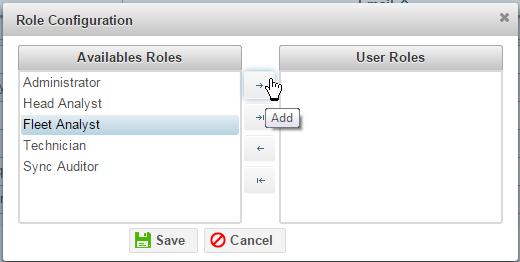
System response: Dialog closes. MESH displays list. Fleet Configuration icon appears for the new user.
User action: 3. Hit the Fleet Configuration icon. 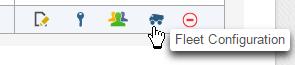
System response: MESH Displays the Fleet Configuration dialog:
User action: 3. Transpose the desired fleet(s). Save. 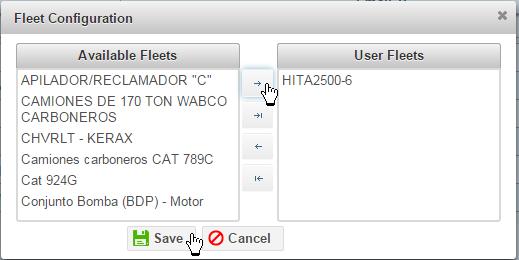
Action succeeds: Dialog closes. Success message appears. 
| Activity 4. Configure general parameters. |
User action: 1. Hit the General Parameters tab. 
System response: MESH Displays the System Configuration module. 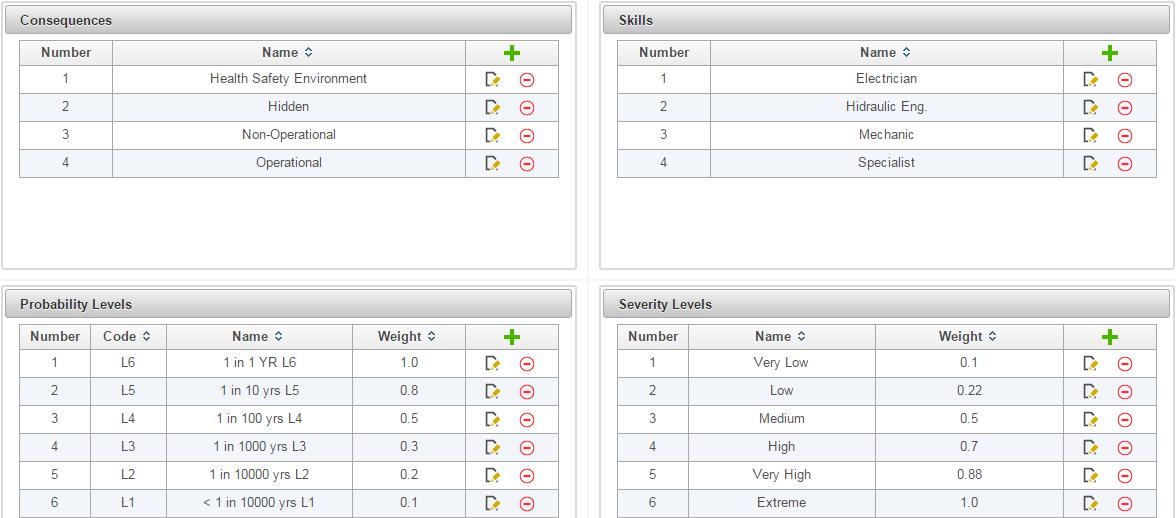
User action: 2. Edit or append elements to the Consequnces, Skills, Probability Levels, and Severity Levels, and Task Type parameters as required. For example hit the Consequence edit icon: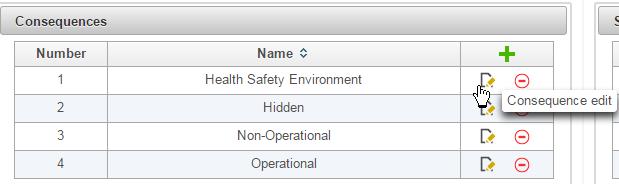
User action: 3. , Edit the information, Save: 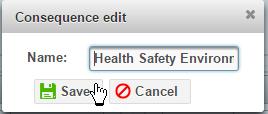
Activity succeeds: Dialog closes and Configuration Module displays new information.

Leave a Reply
You must be logged in to post a comment.