Glossary
Tree, hierarchy, knowledge base: The expandable list representing an Equipment type or Fleet and its Systems, Subsystems, Components, Functions, Failures, and Failure Modes. The elements: Components, Subsystems, or Systems elements may be excluded from any branch of the tree.
Equipment, fleet: The highest element in a heirarchy. Represents a type of equipment. For example Hitachi Electric Truck 320T.
Knowledge element, element: A node on the tree representing one of: Equipment, System, Subsystem, Component, or Failure mode.
Consequences: The reason why the failure matters. The choices are:
- Hidden
- Safety, Health, Environmental
- Operational
- Non-operational
Mitigation Task: An activity that must be done pro-actively to avoid or reduce the consequences of faillure. The choices are:
- Time (age) based maintenance.
- Condition based maintenance.
- No maintenance, allow function to fail and then repair
- Inspection (Failure Finding) to see if a function has failed.
- Redesign – a one time change in the asset, its operation or manitenance procedures, or associated training.
Corrective Task: A reactive activity that must be done following a failure.
Use Cases for MESH Knowledge Builder
Objective: Create and update the RCM knowledge base using MESH Knowledge Builder
Actor(s): Reliability Analyst
Activities:
- Create a new fleet
- Edit fleet information
- Access the fleet hierarchy
- Add a knowledge element
- An element other than a failure mode
- A failure mode
- Modify a knowledge element
- An element other than a failure mode
- A failure mode
- Move an element up or down in the tree
- Copy an element and paste in another another location
- Delete an element
- View a Failure mode
| Activity 1. Create a new Fleet |
User Action: 1. Start MESH in web browser
System response: Knowledge Base – Fleet Administration main display
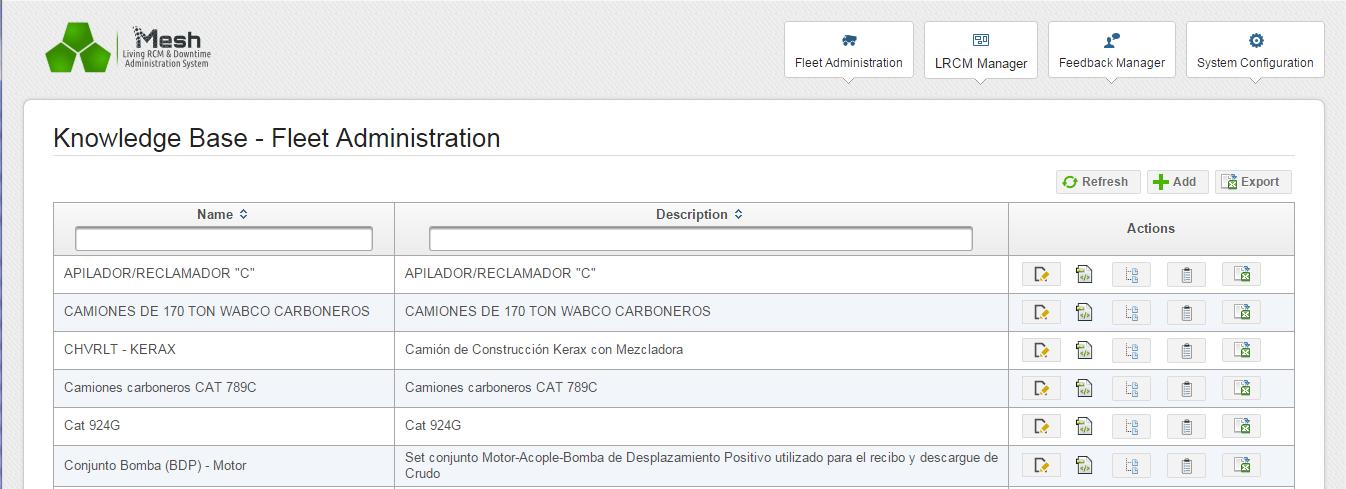
User Action: Hit the +Add button

System response: 2. Input fleet data dialog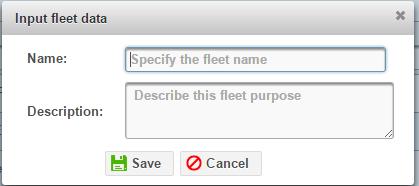
User Action: 3. Enter data, Save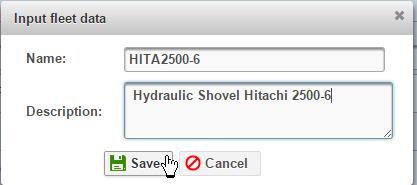
Activity succeeds: Dialog closes. List displays with new equipment added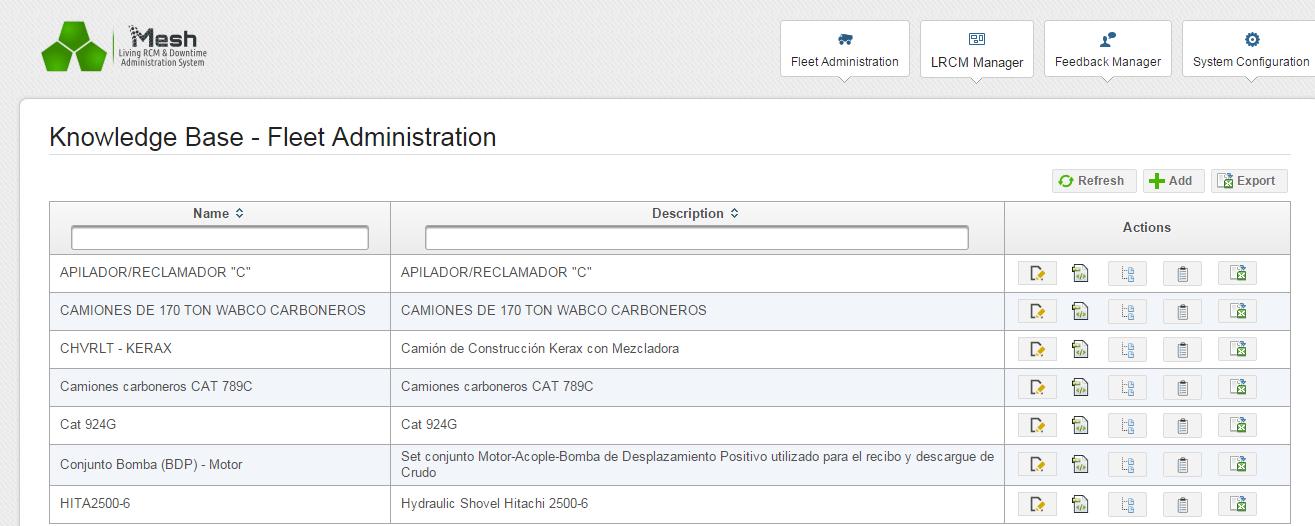
| Activity 2. Edit equipment information |
User Action: 2.1 Hit Edit fleet information icon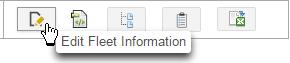 System response: Same dialog as Activity 1 User action 3
User Action: 2.2 Edit data. Save
Activity succeeds: Dialog closes
| Activity 3. Access the fleet knowledge base |
User Action: 3.1 Hit the Build Knowledge icon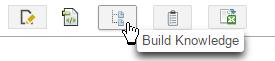 Activity succeeds: Tree view of knowledge base appears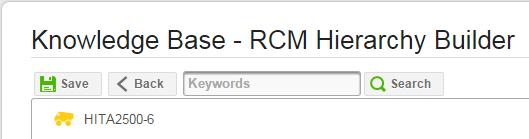
| Activity 4A. Add a new knowledge element (other than a failure mode) |
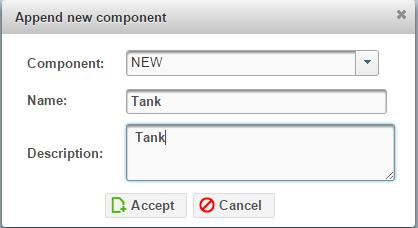
User Action: 4.1 Right click the element below which you wish to add a new element. Select Append. Select the Element type you wish to add.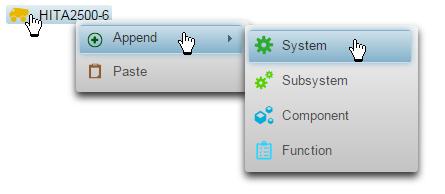
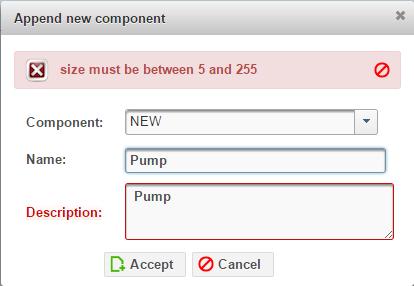
System response: Append new element dialog appears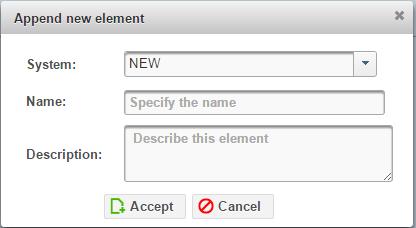
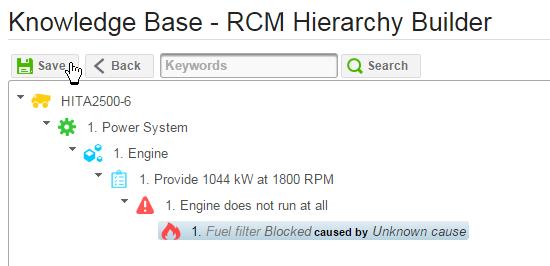
User Action: 4.2 Edit information. Hit Accept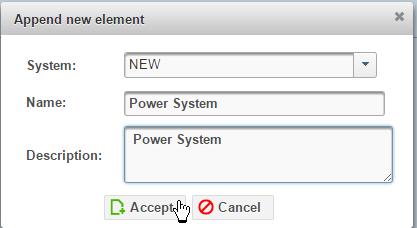 Activity succeeds: New element appears in tree view. Hit Save to accept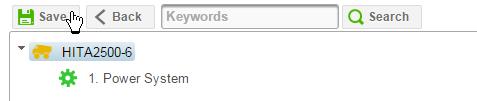
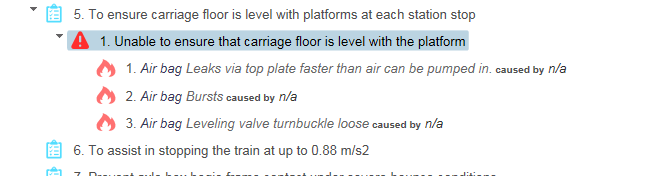
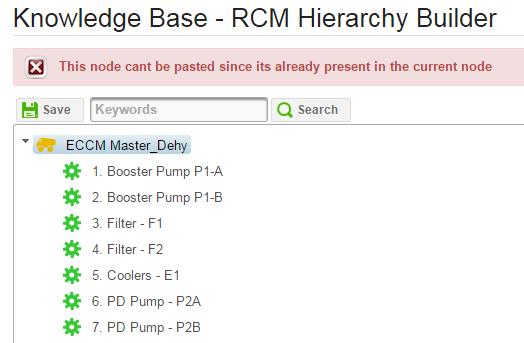
Repeat this activity to append additional elements to the equipment tree. For example add a Component, a Function, and a Functional Failure so that the tree view now looks similar to this: 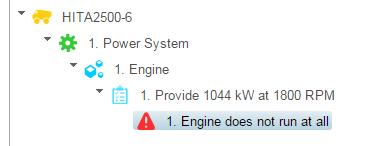
| Activity 4B. Add a failure mode |
User Action: 5.1 Right click a Functional failure and select Append and Failure Mode from the context menu.
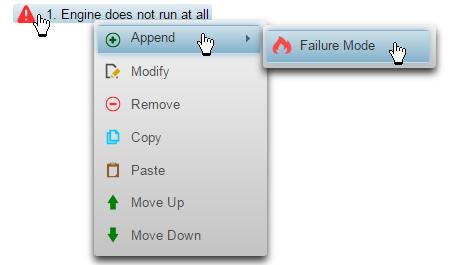
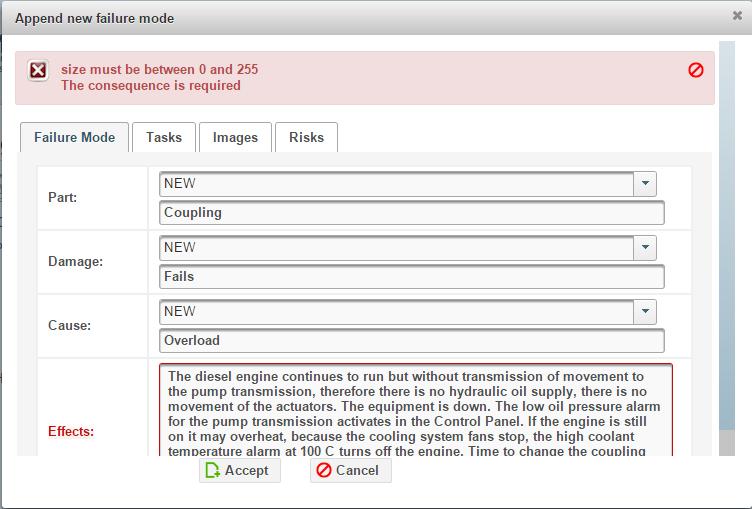
System response: The Append new element (Failure Mode) dialog displays: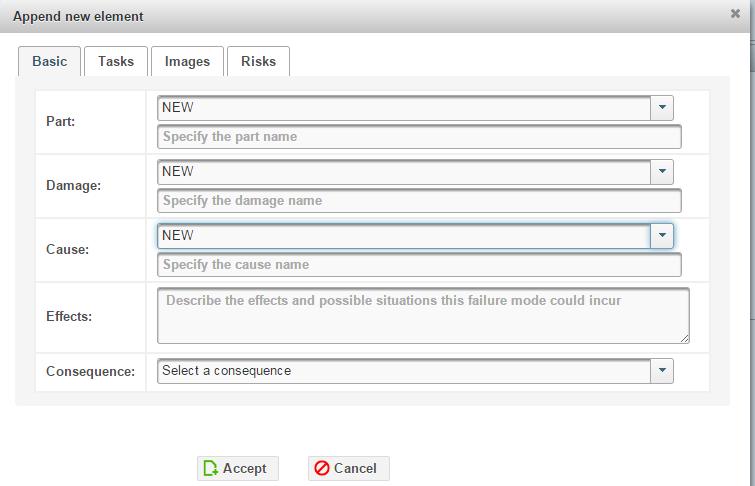
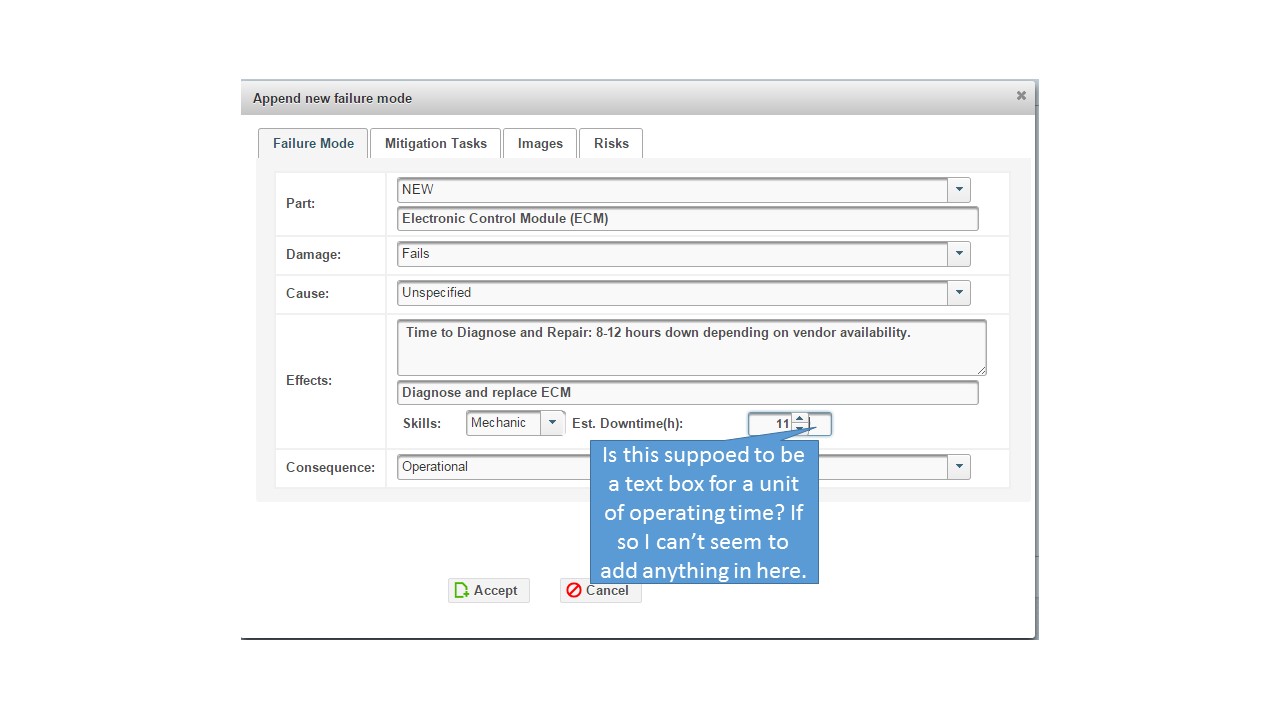
User Action: 5.2 Complete the Failure Mode (Basic) information as shown:
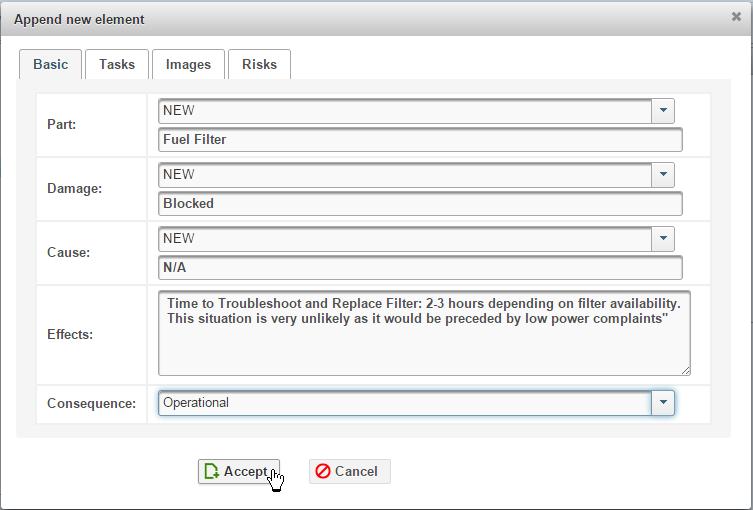
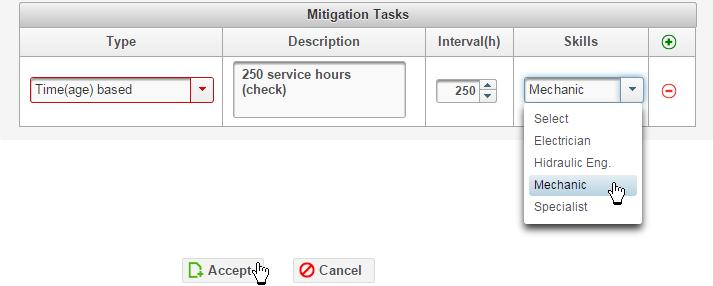
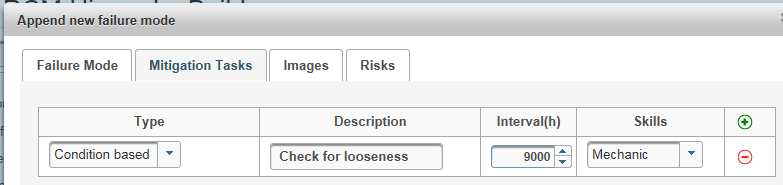
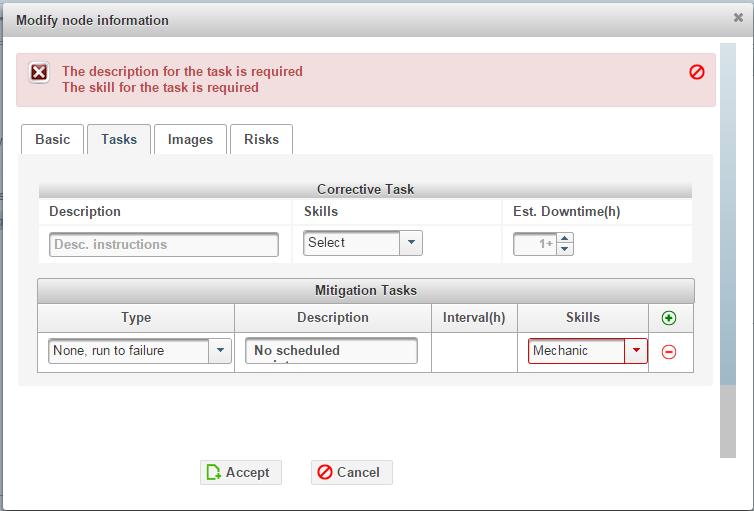
User Action: 5.3 Hit the Tasks tab, the add icon and select a mitigation task type.
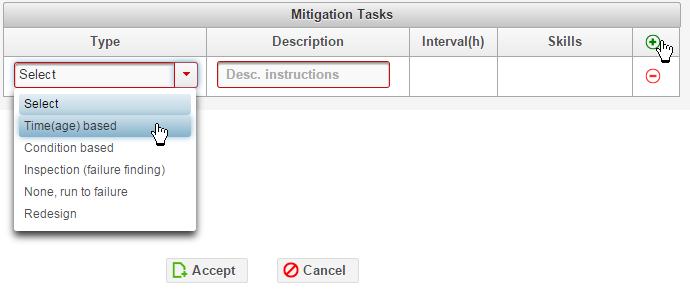
User Action: 5.4 Enter the Description, Interval, and select a Skill:
User Action: 5.5 Hit the Images tab and upload an image (if required) to illustrate the Failure Mode’s Failure, Potential Failure, or Suspension states.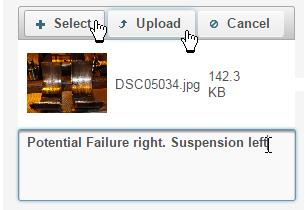
System response: System uploads and displays in the dialog the selected image file. 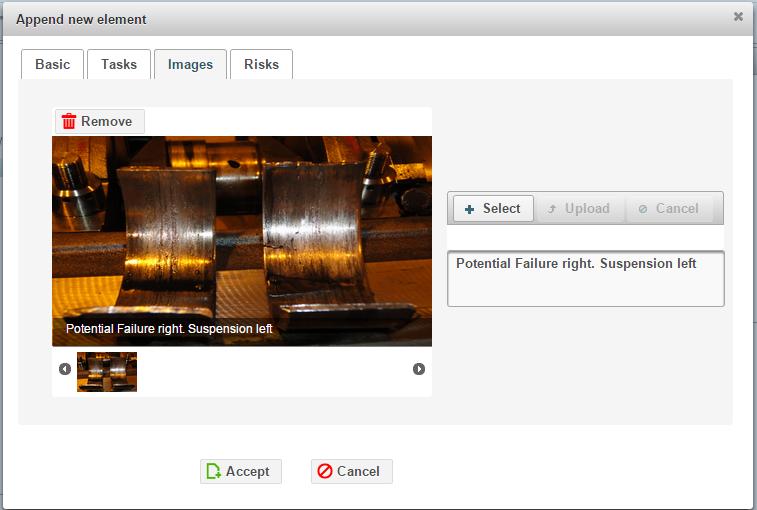
User Action: 5.6 Hit the Risks tab. And select a grid square corresponding to the probability and severity of the Failure mode.
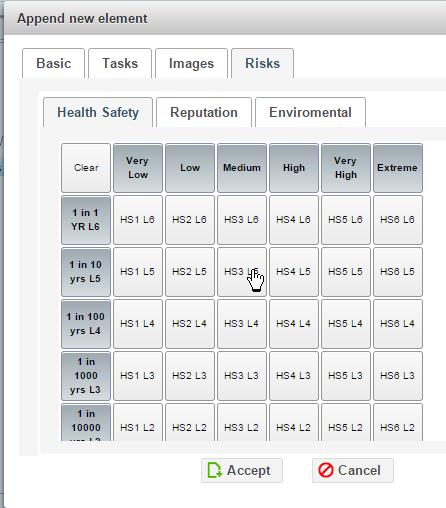
User Action: 5.7 Select the Reputation, then the Environmental tabs making respective severity and probability selections. Hit Accept: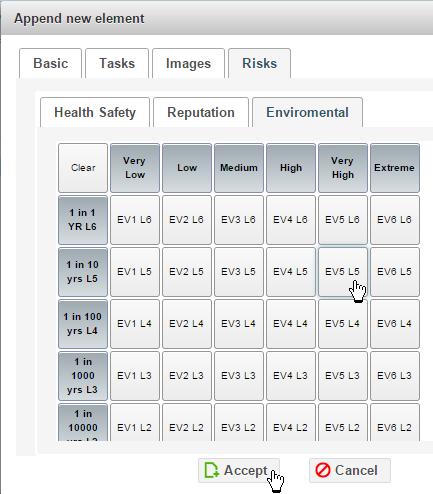
Activity succeeds: System closes dialog and displays tree view with new Failure Mode appended onto the tree.
| Activities 5 to 9. Modify, copy, and move elements. |
User Action: 1. Right click an element in the tree and select the desired context menu activity choice. 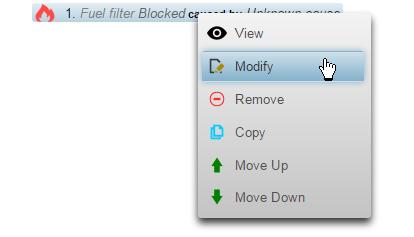
Follow similar procedures to those in Activities 1 to 4B above to complete the required action.
Activities succeed: Hit Save. The system displays success message. 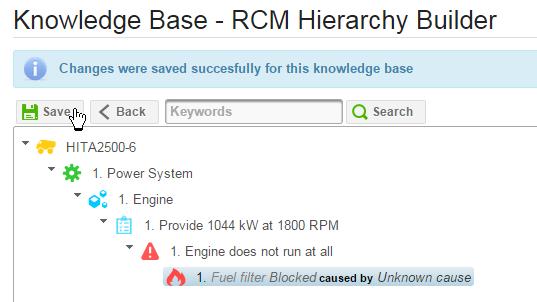

Leave a Reply
You must be logged in to post a comment.